
If you’ve ever had content ideas living in your notes app, a random Google doc, your camera roll, and a few sticky notes you’ll never find again, that’s what this ClickUp Content Calendar template does.
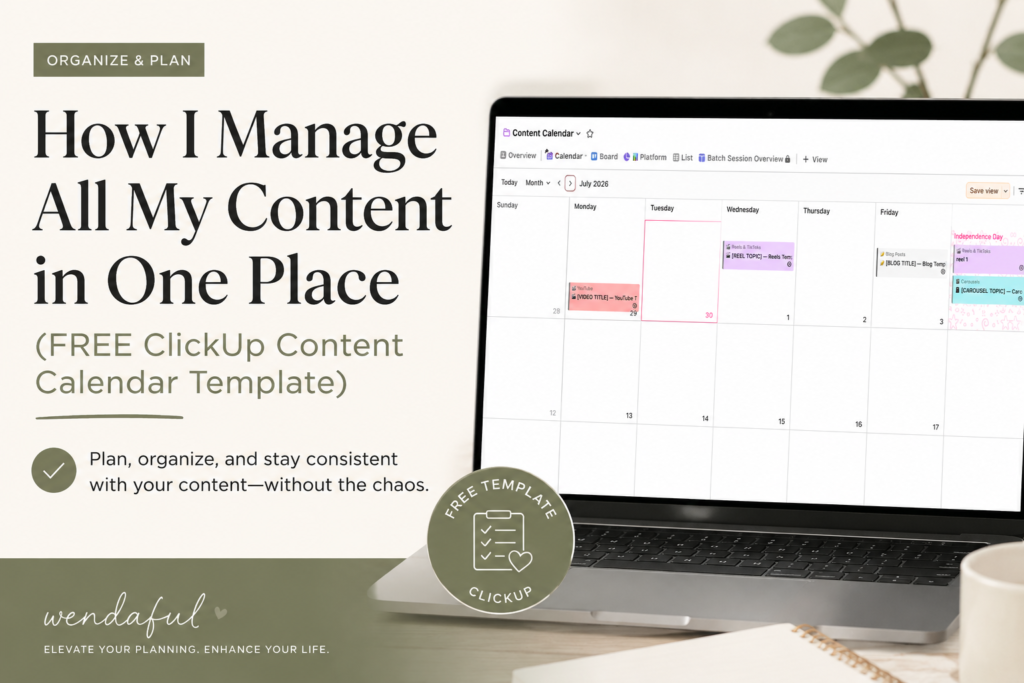
I used to plan content that way. A little here, a little there, nothing connected. I’d forget what I was supposed to film, miss my batch days, and feel behind even when I technically had ideas ready.
The fix wasn’t another app. It was one system that actually held everything together.
That’s what this ClickUp Content Calendar template does. And I’m sharing it for free.
Table of Contents
Free ClickUp Content Calendar Template
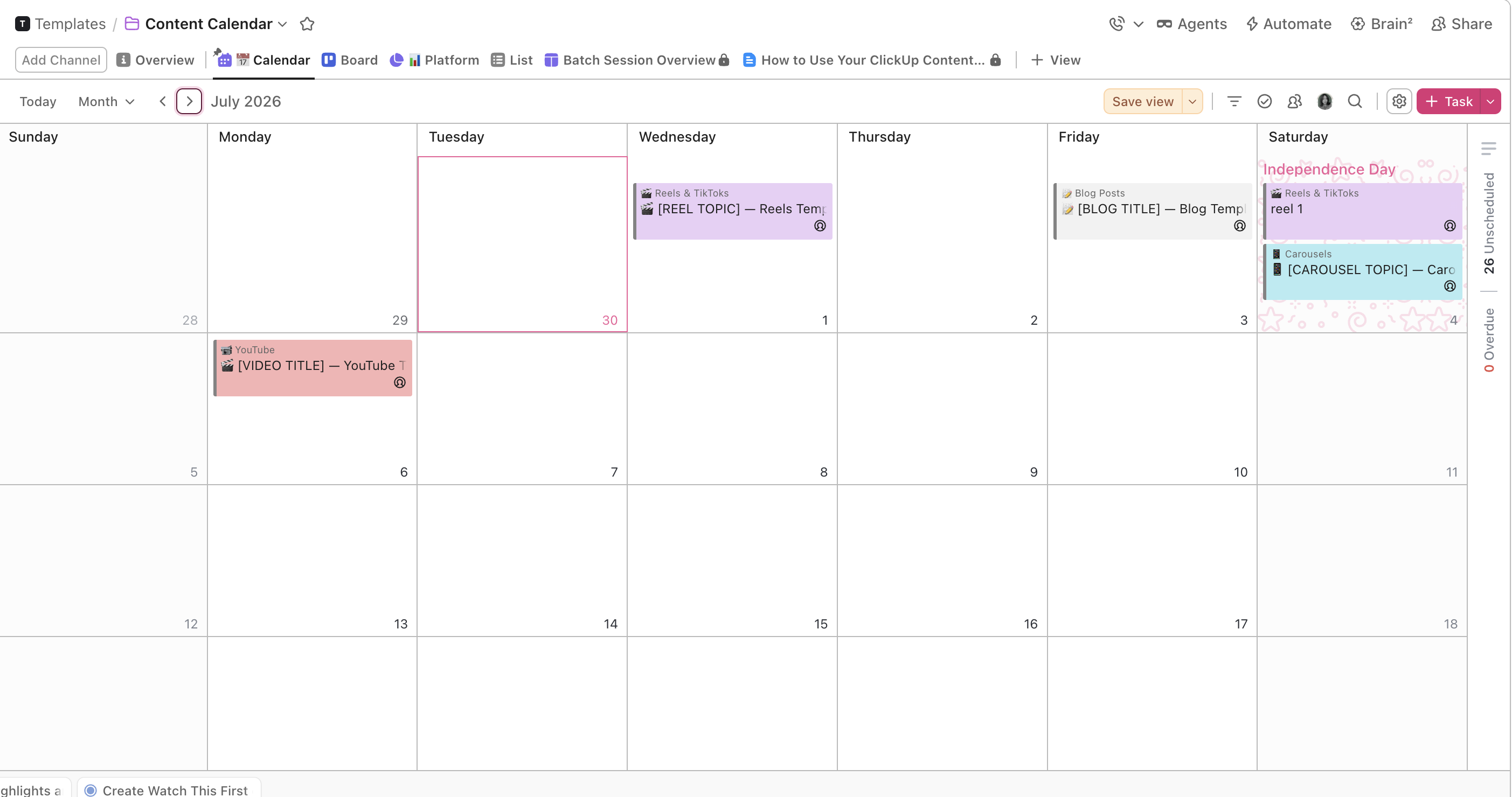
Grab the free template here: https://app.clickup.com/template/category/t-901410402650/9965fe73d3936eee62
Don’t have ClickUp yet? Sign up free here (this is my referral link — it costs you nothing and helps support the blog).
Why I Don’t Just Use One Big List
I know what you might be thinking. Why not just throw everything into one list and filter it by social media platform?
Here’s the honest answer: I have a lot of ideas. Like, a lot. And when I kept everything in one list, it turned into this massive wall of tasks that I dreaded opening. I couldn’t tell at a glance what was a reel idea versus a YouTube video versus a carousel I was halfway through designing (bc the majority of the time when i have an idea i just dump it without assigning the social media platform). It all blurred together.
Separate lists fixed that. Each list has one job, less friction when I am dropping my ideas. When I open the Reels and TikToks list, I only see reel content. When I open YouTube, I only see videos. My brain doesn’t have to sort through everything just to figure out what to work on next.
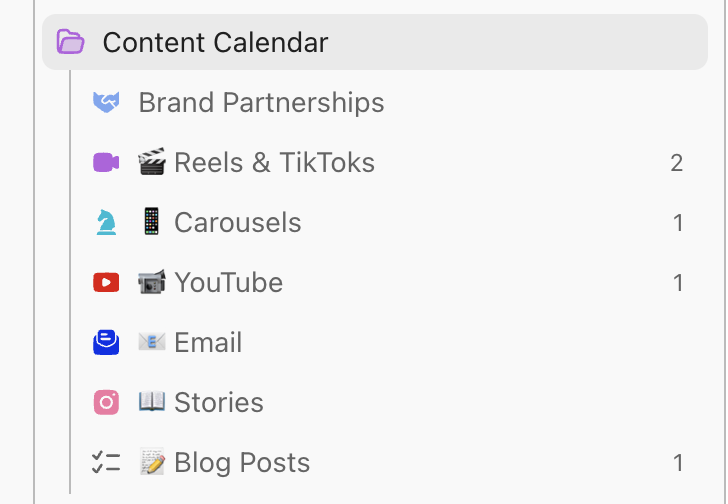
The folder is what ties it all together. The Content Calendar folder sits in my workspace and holds every list inside it. So it’s still one place — I’m not jumping around between five random spots. I just click into the folder and everything is right there, organized by format.
It also makes batching way easier. When I sit down to film reels, I open the Reels list and that’s my whole filming queue. I’m not scrolling past YouTube ideas or email drafts to find what I need. Everything that belongs to that session is already grouped and ready.
If you’re someone who generates a lot of content ideas and struggles to keep track of what’s what, this setup is going to feel really good. Separate lists inside one folder means you get the clarity of organization without losing the convenience of having it all in one place. That’s the whole point of this ClickUp content calendar template — one folder, every format, no chaos.
How to Add This Template to Your ClickUp (Takes 30 Seconds)

Adding this ClickUp content calendar template to your workspace takes about 30 seconds. I want to make sure this actually lands in your workspace and doesn’t just sit in your browser tabs forever. Here’s all you have to do:
- Make sure you’re signed into your ClickUp account. If you don’t have one yet, grab a free account using this link.
- Click the template link. You’ll be taken straight to the template page: click here to open it.
- Select the Space you want to add it to. ClickUp will ask you which Space in your workspace you want the Content Calendar folder to live in. Pick the one that makes sense for your business.
- Click Use Template. That’s it. The whole folder — every list, every subtask workflow, every view — gets added to your workspace instantly.
You don’t have to build anything from scratch or figure out how to set up views. It’s all already there waiting for you.
What’s Inside This ClickUp Content Calendar Template
Everything is organized by content type so nothing gets mixed together and you always know where to find what you need.
Reels and TikToks
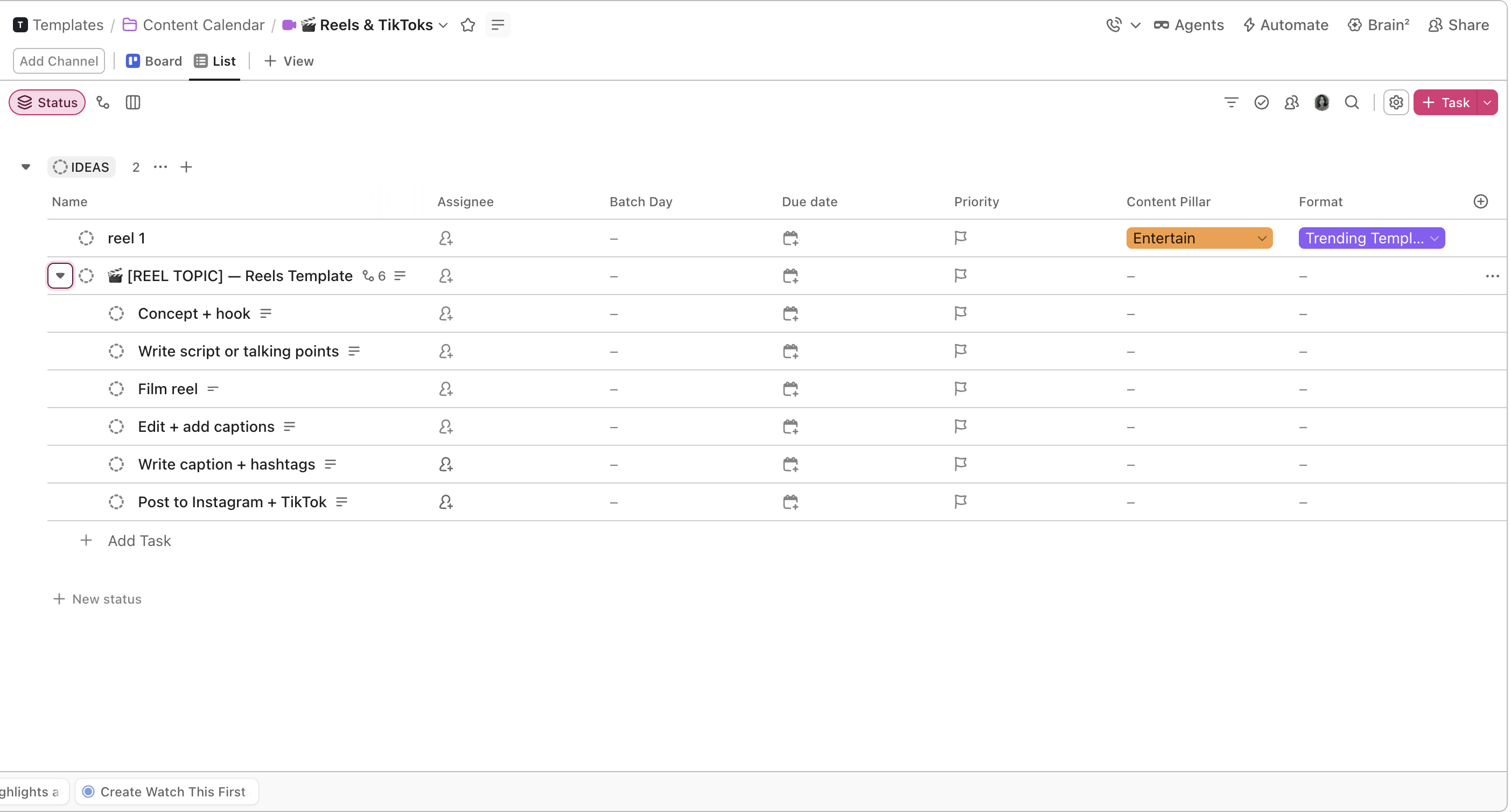
This is where all your short-form video lives. Each piece of content walks through the full production workflow:
- Concept and hook
- Script or talking points
- Filming
- Editing
- Captions and hashtags
- Posting to Instagram and TikTok
You tag each video by content pillar, format, and batch day so you can plan and film in batches without losing track of what you’re doing mid-session.
Carousels
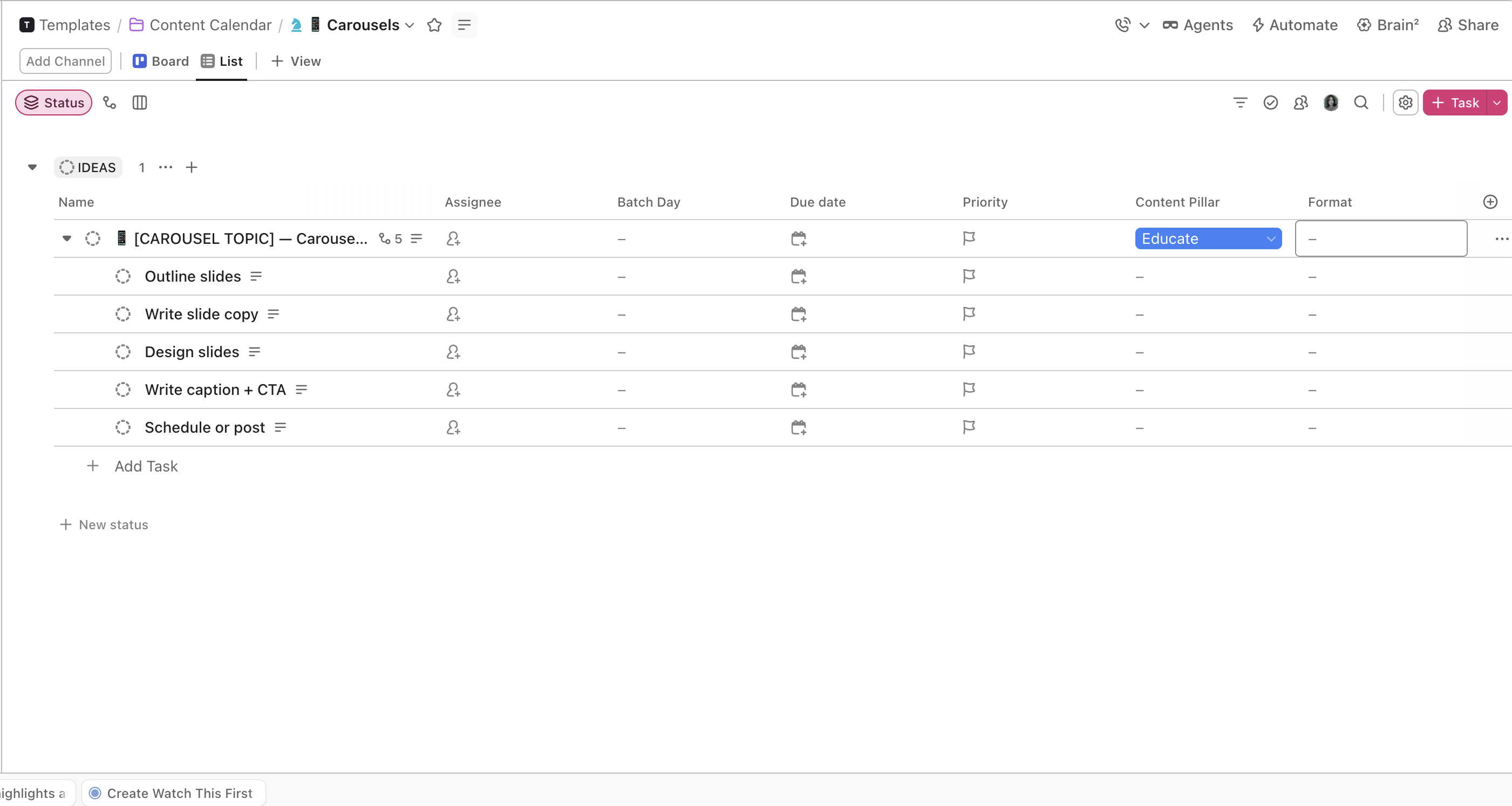
Same workflow, different format. Each carousel has its own subtask flow:
- Outline the slides
- Write the copy
- Design
- Write the caption and CTA
- Schedule or post
No more half-finished carousels sitting in your drafts because you forgot where you left off.
YouTube
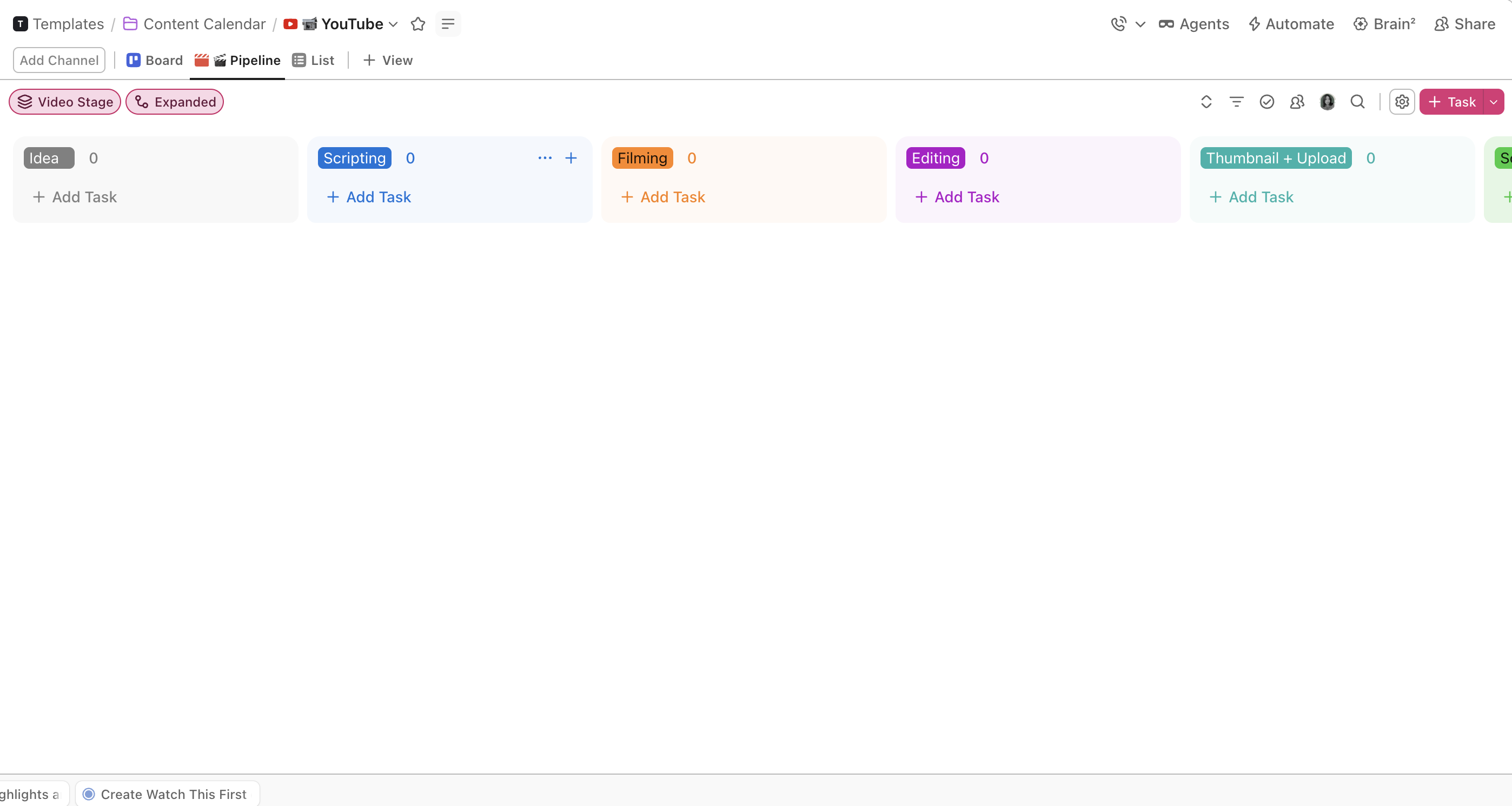
The YouTube list has a pipeline board view so you can see every video by stage: Idea, Scripting, Filming, Editing, Thumbnail and Upload. You can see at a glance exactly what’s in progress and what’s stuck.
A dedicated list just for your email content. It doesn’t get buried with social posts and it doesn’t get forgotten.
Stories
Separate from your reels so you can plan quick daily content without it cluttering your main video queue.
Blog Posts
Long-form content gets its own space and workflow so nothing falls through the cracks.
Brand Partnerships
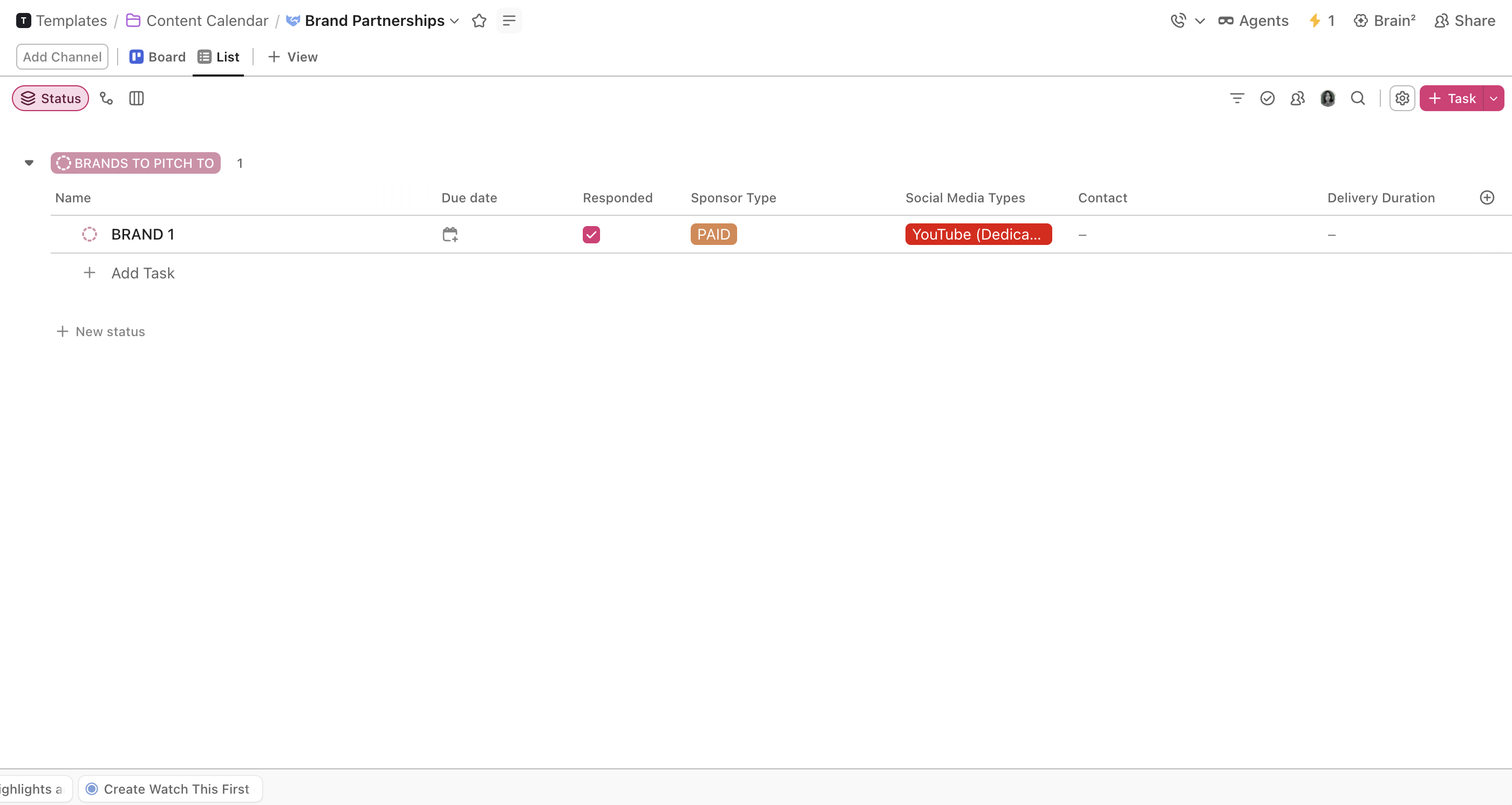
This is the section most content creators forget to build a system for.
You’ve got a spot for your media kit link, pitch templates, and a running list of brands you want to pitch to. When an opportunity comes up, everything is in one place instead of you scrambling through your email trying to find things.
The Views That Make It Work
The template comes with multiple ways to look at your content depending on what you need:
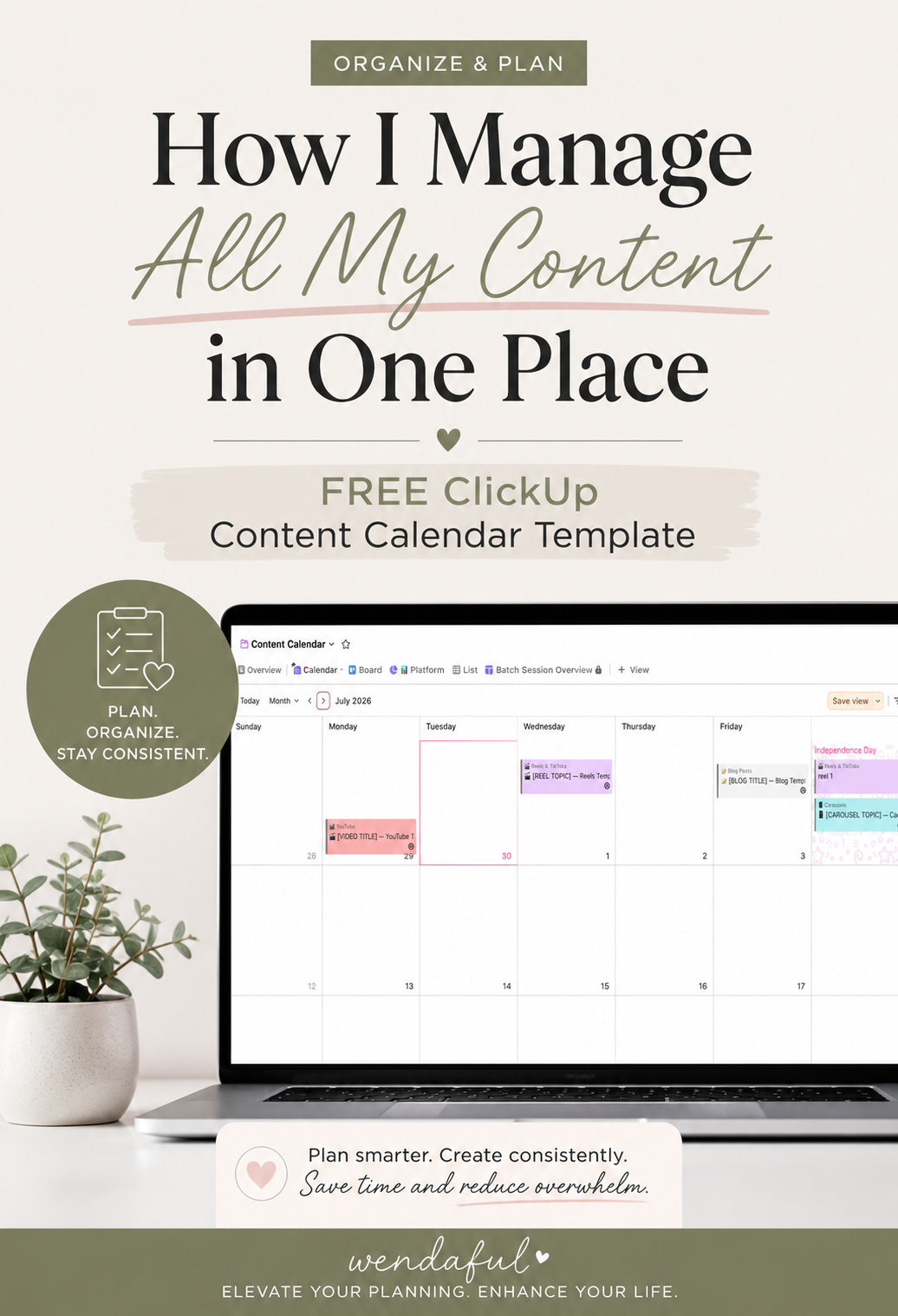
- Calendar view: See everything by publish date. Know your week and month at a glance.
- Board view: Move content through production stages visually.
- Platform view: Filter by channel so you can focus on one platform at a time.
- Batch Session Overview: Open this on batch day and your entire filming list is already there. No digging required.
Every piece of content gets tagged with a content pillar, a format, a batch day, and a publish date. When it’s time to batch, you filter by batch day and your list is ready.
Who This Is For
This template is for content creators who are tired of keeping their content plan in their head or spread across five different places.
If you post to Instagram, TikTok, and YouTube, and you also send emails or write blog posts, you need somewhere that holds all of it without making you feel overwhelmed every time you open it.
It’s also built for creators who work with brands. The Brand Partnerships section gives you a real system for tracking pitches and opportunities instead of scrambling every time someone reaches out.
How to Start Using It After You Add It
Once you’ve added the ClickUp content calendar template to your workspace, here’s the simplest way to get going.
- Go to the Reels and TikToks list and add your current content ideas
- Tag each one with a content pillar and a batch day
- Open the Batch Session Overview before your next filming day
- Move content through the stages as you create
- Check the Calendar view to make sure your publish schedule actually makes sense
You don’t have to fill in every field before you start. Add a few pieces of content, tag them, and let the system show you how it works. Build from there.
Ready to Grab It?
Click here to grab the free ClickUp content calendar template.
If you’re not on ClickUp yet, grab your free account here and then come back and add the template. The free plan is enough to get started.
If you want to see how I actually use this inside my own workspace, let me know and I can post it on YouTube. Drop any questions in the comments and I’ll answer them there.
