

If your planner has become the place where you write literally everything, I get it.
For a long time, I had one page for everything.
A dentist appointment.
“Email the soccer coach.”
A gift idea for my mom.
Something I needed to buy at Target.
A random business idea that popped into my head while I was making dinner.
If it entered my brain, it went on the page.
The problem wasn’t writing things down.
The problem was finding them later.
And when you’re already juggling kids, work, appointments, errands, and approximately 22 things you’re supposed to remember every day, having to hunt through your planner for one tiny piece of information gets old really fast.
Eventually, I realized I didn’t need a more complicated planner.
I needed a simple planner setup system that gave everything a place to go.
That’s what led me to the 4-Part System:
Inbox → Calendar → Tasks → Notes
And honestly, those four sections handle most of what comes into my brain on a normal day.
Want a simpler weekly planning routine?
Grab my free Weekly Reset Kit and use it to get everything out of your head, figure out what actually matters this week, and start fresh.
Table of Contents
Why One Page for Everything Gets Messy
The “everything page” feels really satisfying at first.
You write something down, so you don’t have to keep thinking about it.
But then life keeps happening.
You write down your daughter’s school event underneath your grocery list.
Then you add a reminder to call the dentist.
Then you jot down a password.
Then you remember you need to order something for your business.
Then three days later, you’re flipping through your planner thinking:
“Wait… where did I write that?”
This happened to me constantly.
And the bigger problem is that these things don’t actually have the same job.
An appointment needs to live somewhere I’ll see it when I’m looking at my schedule.
A task needs to be somewhere I’ll look when I’m deciding what to do.
A password or piece of information needs to be somewhere I can find it again.
They shouldn’t all be competing for the same piece of paper.
So instead of trying to organize everything in the moment, I started giving each type of information its own spot.
The 4-Part Planner System
You really only need four places.
1. Inbox
Job: Capture things before you forget them.
The Inbox is not where things permanently live.
It’s the place where everything lands first.
Think of it as your external brain.
You might write:
- Email Sophia’s teacher
- Buy poster board
- Ask Paul about Saturday
- New YouTube video idea
- Return Amazon package
- Look up summer camps
- Remember to bring water bottles to soccer
Don’t worry about organizing it perfectly while you’re thinking of it.
Just get it out of your head.
Your Inbox could be a page in your paper planner, a notes app, a small notebook, or whatever you will actually use.
The important part is having one trusted capture spot.
2. Calendar
Job: Hold things that happen on a specific date or time.
This is where I put appointments, events, practices, meetings, school events, birthdays, and anything else that has a specific place on my schedule.
For example:
- Dentist appointment Tuesday at 2:00
- Soccer practice Wednesday at 5:30
- School concert Friday at 6:00
- Flight June 6
- Doctor appointment next month
A simple rule:
If it happens at a specific time, it belongs on the calendar.
And if you’re anything like me, don’t rely on your memory just because you technically know something is happening.
Put it on the calendar.
Add an alarm.
Let technology remember it for you.
3. Tasks
Job: Hold things you need to do.
This is where all those “I need to…” thoughts go.
But there’s one important distinction.
Try not to write vague tasks like:
“School stuff.”
That’s not actually something you can do.
Instead:
Email Sophia’s teacher about the field trip.
Or:
Buy poster board for science project.
Or:
Fill out soccer registration.
Make the next action obvious.
This is also where I pull my Top 3 from when I’m planning my day.
I don’t need to finish every task on my list.
I just need to know what actually needs my attention today.
4. Notes
Job: Store information you want to keep.
Notes are for things that aren’t really tasks and don’t belong on your calendar.
For example:
- Wi-Fi password
- Clothing sizes
- Gift ideas
- Vacation research
- School information
- Measurements
- Recipes
- Business ideas
- Instructions you’ll need again
This is where I stopped forcing myself to remember things that I could simply save.
If I know I’m going to need the information again, I give it a home.
How Things Move Through the System
Here’s the part that makes this work.
You don’t have to decide where everything belongs the second you think of it.
Instead, things move through the system.
1. Capture
Something pops into your head.
Put it in the Inbox.
2. Sort
Later, during your daily or weekly check-in, look through your Inbox.
Ask:
Is this a Calendar, Task, or Note?
You can even make this ridiculously simple.
Write C, T, or N next to each item.
3. Move and do
Once you’ve decided what it is, move it to its actual home.
Calendar → Calendar
Task → Task list
Note → Notes
And if it’s a task, eventually you do the task.
That’s the whole loop.
Capture → Sort → Move → Do
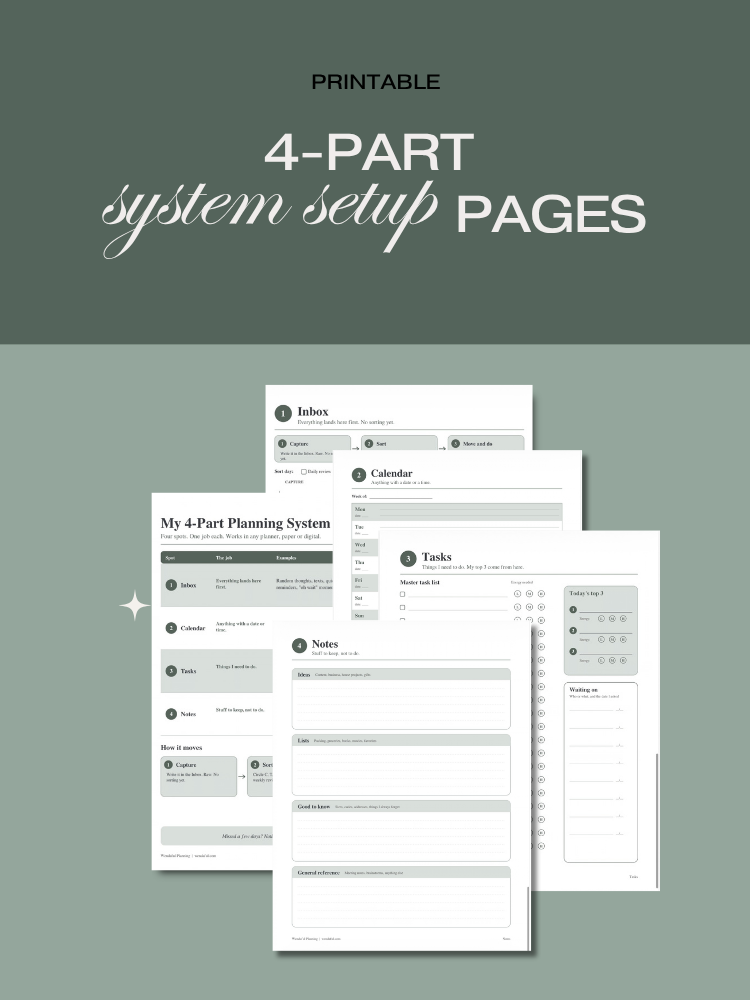
I created the 4-Part System Setup Pages to make this easier to set up in your own planner.
The pages help you decide where each section lives, so you don’t have to copy my exact setup.
Maybe your calendar is on your phone.
Your tasks might be in your planner.
Your notes might live in Apple Notes.
That’s completely fine.
The system should fit your life, not the other way around.
Get the 4-Part System Setup Pages
But… Where Does This Actually Go?
This is the question that used to make me crazy:
“Where does this go?”
Because knowing you have four sections is helpful.
But real life gets a little messier.
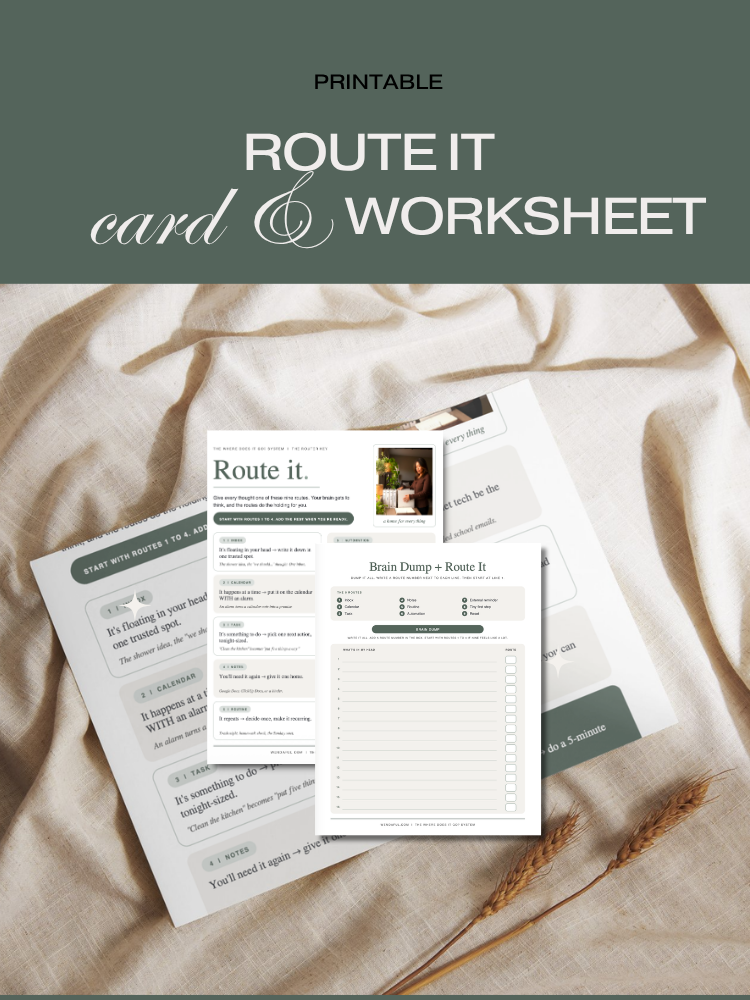
So I created Route It to make that decision easier.
Let’s say I do a brain dump and write:
Buy poster board
Soccer practice Wednesday 5:30
New YouTube video idea
Ask Paul about Saturday
Wi-Fi password
Schedule dentist
Remember to order printer ink
Here’s how I’d route the first four:
Route 1: Inbox
If I don’t know what something is yet or I’m simply trying to get it out of my head, it goes into the Inbox first.
Route 2: Calendar
Soccer practice Wednesday at 5:30 → Calendar.
It has a specific date and time.
Route 3: Task
Buy poster board → Task.
It’s something I need to do.
Route 4: Note
Wi-Fi password → Note.
It’s information I want to keep and find again.
And there are five additional routes for the things that don’t fit quite as neatly.
They cover:
- Repeats
- Let Tech Remember
- Keep Forgetting
- Avoiding
- When the Week Falls Apart
Because sometimes the problem isn’t knowing what to do.
It’s figuring out why the same thing keeps getting stuck.
That’s what the Route It Card helps with.
You can use it alongside the brain dump worksheet to dump everything out, give each item a route, and work through it one line at a time.
Get the Route It Card + Worksheet
What If You Miss a Few Days?
This might actually be my favorite part of the system.
Nothing is ruined.
You don’t need to recreate the last five days.
You don’t need to rewrite your entire planner.
You don’t need to spend two hours “getting organized” before you can start again.
Go back to the Inbox.
That’s it.
Here’s my 5-minute reset:
Minute 1: Dump
Write down everything currently floating around in your head.
Minute 2: Calendar
Check your calendar for anything coming up that you need to know about.
Minute 3: Sort
Look at your Inbox and mark each thing C, T, or N.
Minute 4: Choose
Pick the few tasks that actually matter right now.
Minute 5: Start
Do one thing.
Not everything.
One thing.
The goal isn’t to create a planner system you never fall out of.
That’s not real life.
The goal is to create a system that makes it easy to come back.
Your Tiny First Step
You don’t need to buy a new planner.
You don’t need a new app.
You don’t need to reorganize your entire desk.
Grab a blank page.
Write:
INBOX
at the top.
Then put every random thing currently bouncing around in your head onto that page.
Don’t organize it yet.
Just get it out.
That’s your starting point.
And once you’re ready, you can start giving those things a home:
Inbox. Calendar. Tasks. Notes.
Simple enough to use on a busy Tuesday.
Simple enough to come back to after a bad week.
And flexible enough to actually fit your life.
Want to try this with a weekly reset, too?
Grab the free Weekly Reset Kit and start there. You don’t have to fix your whole planning system today. One page is enough.
Your planner doesn’t need to hold everything. It just needs to help you know where everything goes.

