
Table of Contents
Free Pastel Sterling Ink Planner Stickers Sized for B6 (Also Fits A5)
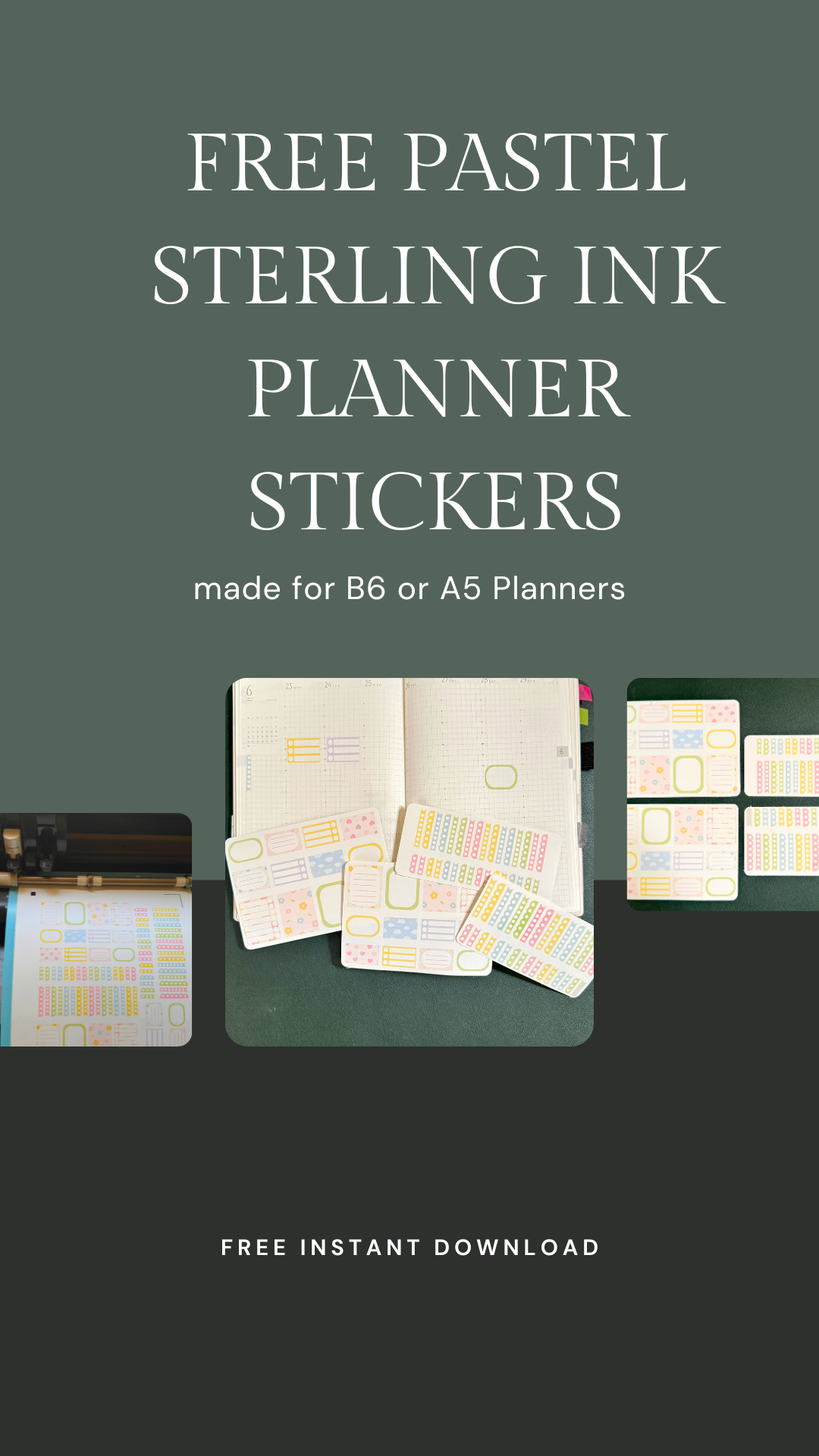
If you’ve ever downloaded free planner stickers only to find out they’re sized for A5 or bigger planners, you know the frustration. The boxes don’t line up, spreads feel cramped, and it just doesn’t look right.
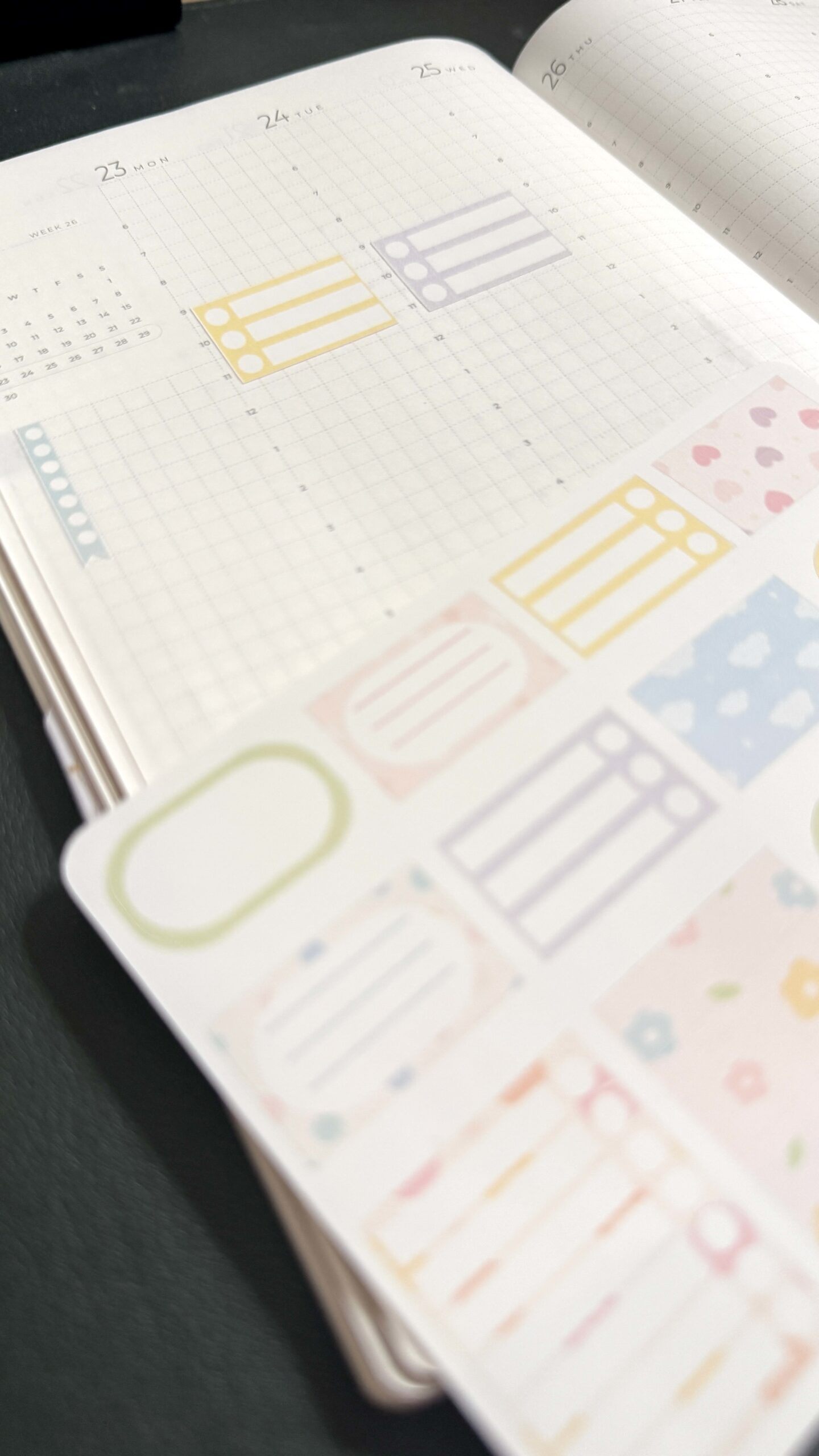
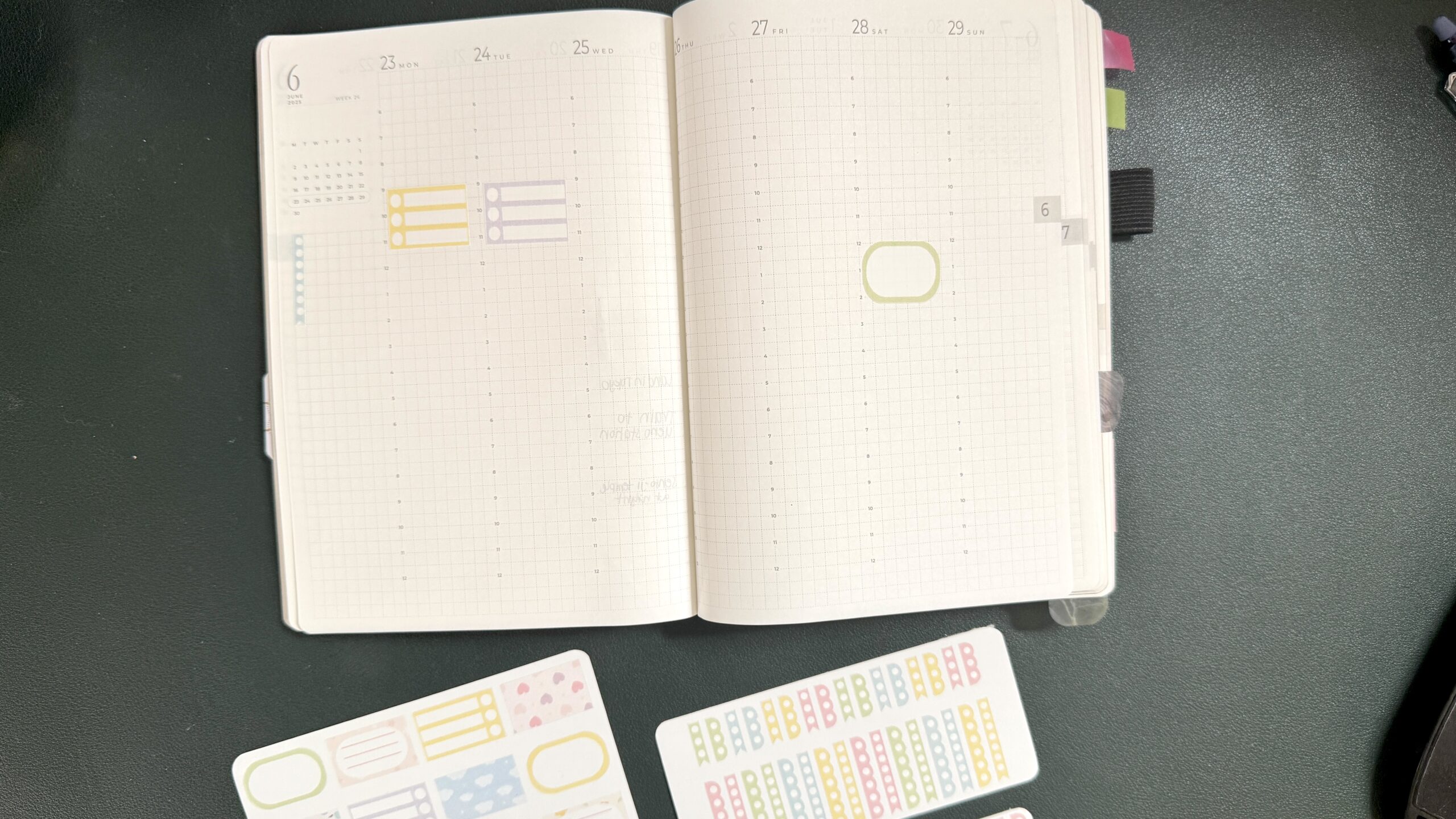
That’s why I made this set of pastel Sterling Ink planner stickers sized specifically for the B6 planner. They’re designed to fit perfectly in the Sterling Ink B6 Common Planner, but the best part? They also work in A5 layouts with a little extra breathing room.
These freebies are beginner-friendly and come in multiple formats:
- PNG (print at home, Cricut, or import into Silhouette Studio)
- SVG (scalable vector graphics for Cricut or other cutting machines)
- Silhouette Studio (.studio3) (pre-set with cut lines, no setup needed)
What’s Included in Your Free Sticker Set
When you download, you’ll get:
- Pastel Sterling Ink Sticker Sheet (B6 sized, A5 compatible)
- PNG files – high-resolution with transparent background
- SVG files – for Cricut and other cutting software
- Silhouette Studio files (.studio3) – cut lines already set up
- All files zipped in one easy-to-download folder
How to Use the PNG Stickers
The PNGs are the most versatile option and work in almost any setup:
- Print & Cut by Hand
- Print the PNG on full-sheet sticker paper.
- Cut with scissors or a craft knife.
- Cricut Design Space
- Upload the PNG.
- Select “Print Then Cut.”
- Cricut will handle perfect cutting.
- Silhouette Studio
- Open Silhouette Studio (it’s free to download here: Get Silhouette Studio)
- Drag and drop the PNG straight in.
- Use the Trace tool to set cut lines if needed.
How to Use the SVG Stickers
SVG files are great for Cricut users because they’re scalable and come with cut lines:
- Open Cricut Design Space.
- Upload the SVG file.
- Resize if needed (they’re already sized for B6, but you can scale up for A5).
- Print on sticker paper and let Cricut cut them out.
You can also import SVGs into Silhouette Studio Designer Edition if you prefer vectors over PNGs.
How to Use the Silhouette Studio Files
If you have a Silhouette machine, I’ve included the easiest option:
- Download and unzip the folder.
- Open the .studio3 file in Silhouette Studio.
- Print the sheet on sticker paper.
- Place the sheet on your cutting mat.
- Select “Sticker Paper, White” in the cut settings.
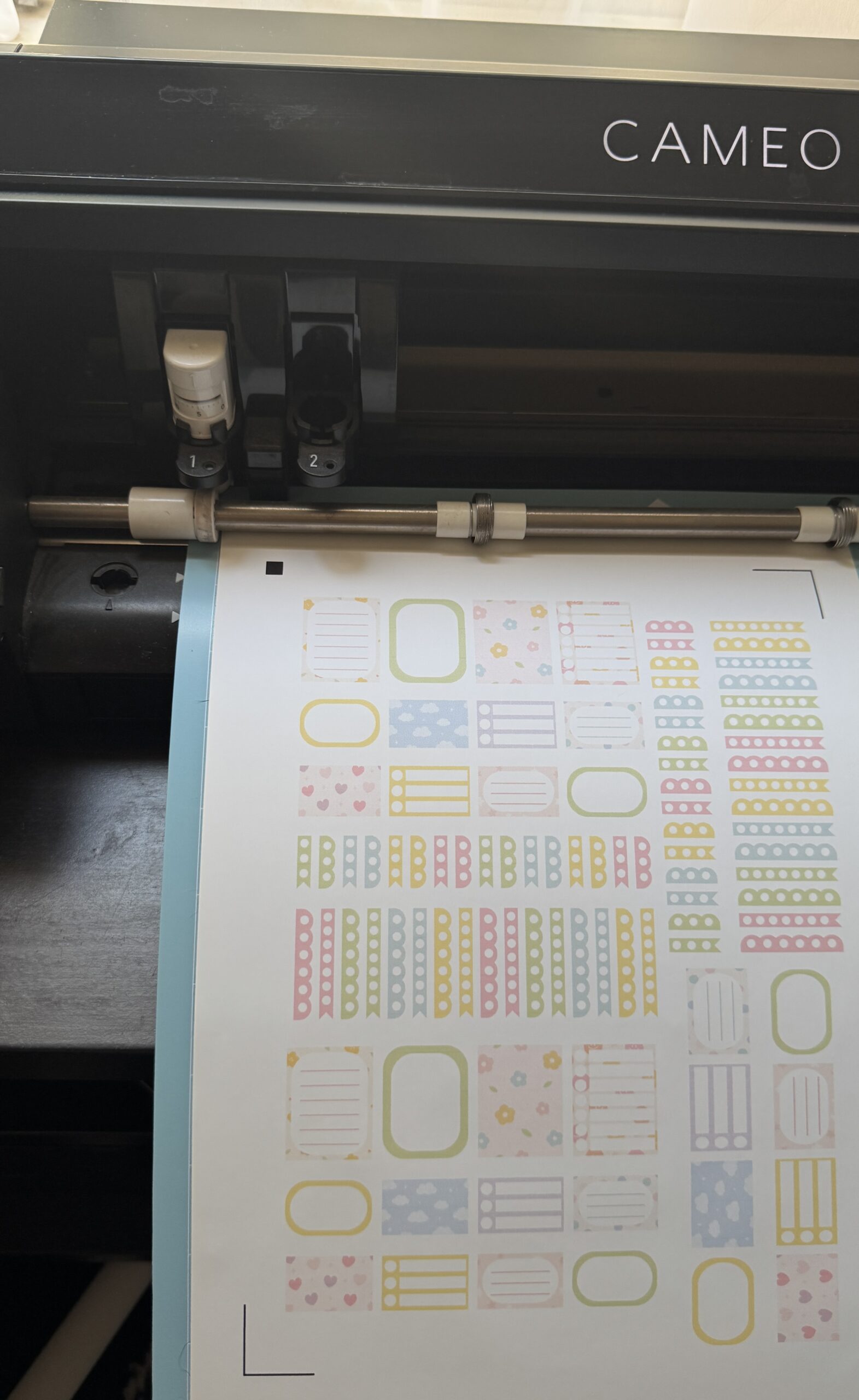
- Send to cut and enjoy perfect B6 stickers without adjusting anything.
Don’t have Silhouette Studio yet? Download it free here: Silhouette Studio Software
Why These Stickers Are Perfect for B6 + A5
- Sized just right – no more trimming oversized A5 boxes for your B6 spreads.
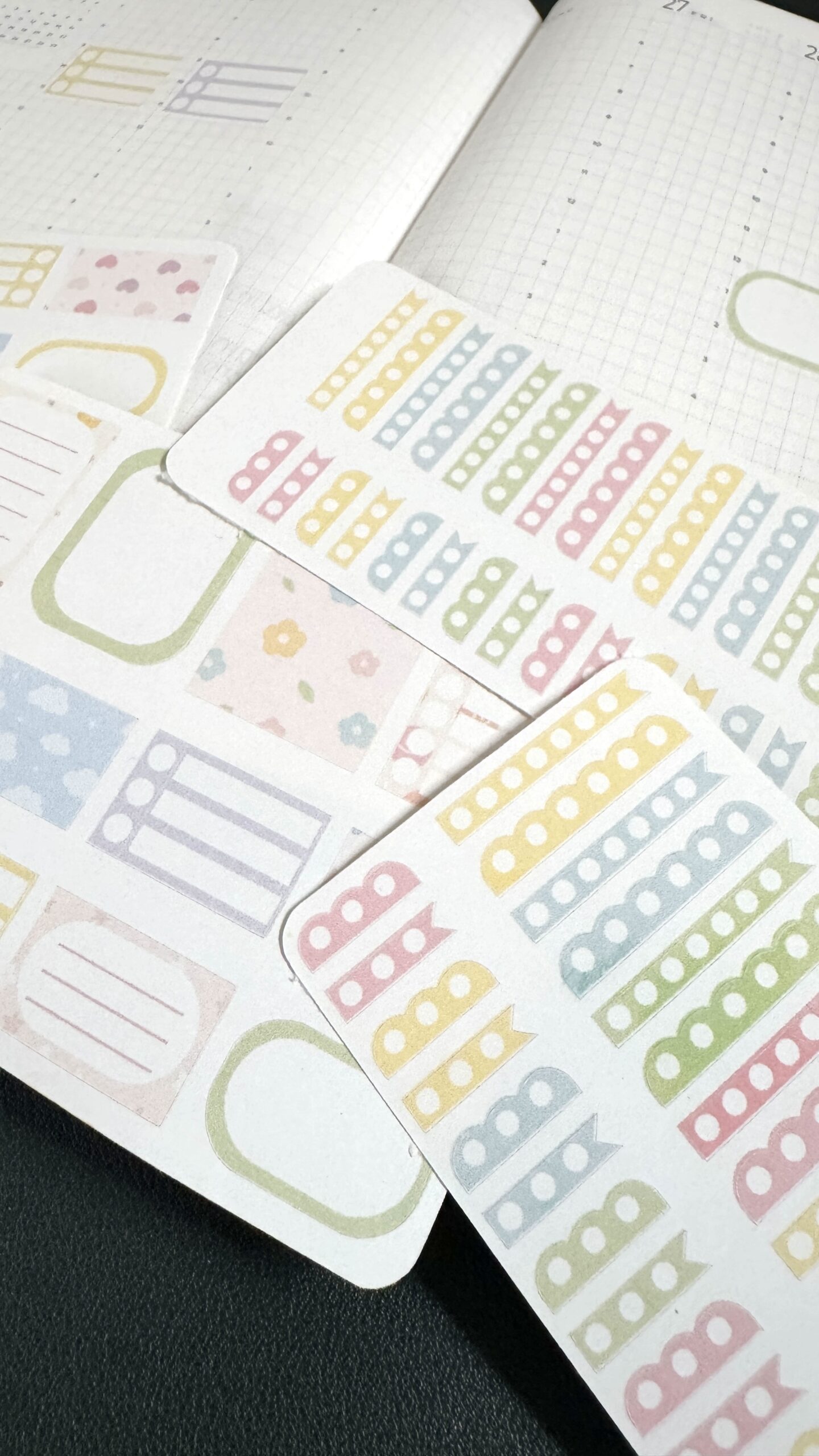
- Soft pastel palette – matches the minimal vibe of Sterling Ink planners.
- Multi-format – PNG, SVG, and Studio3 so anyone can use them.
- Dual purpose – works in both B6 and A5 planners depending on your style.
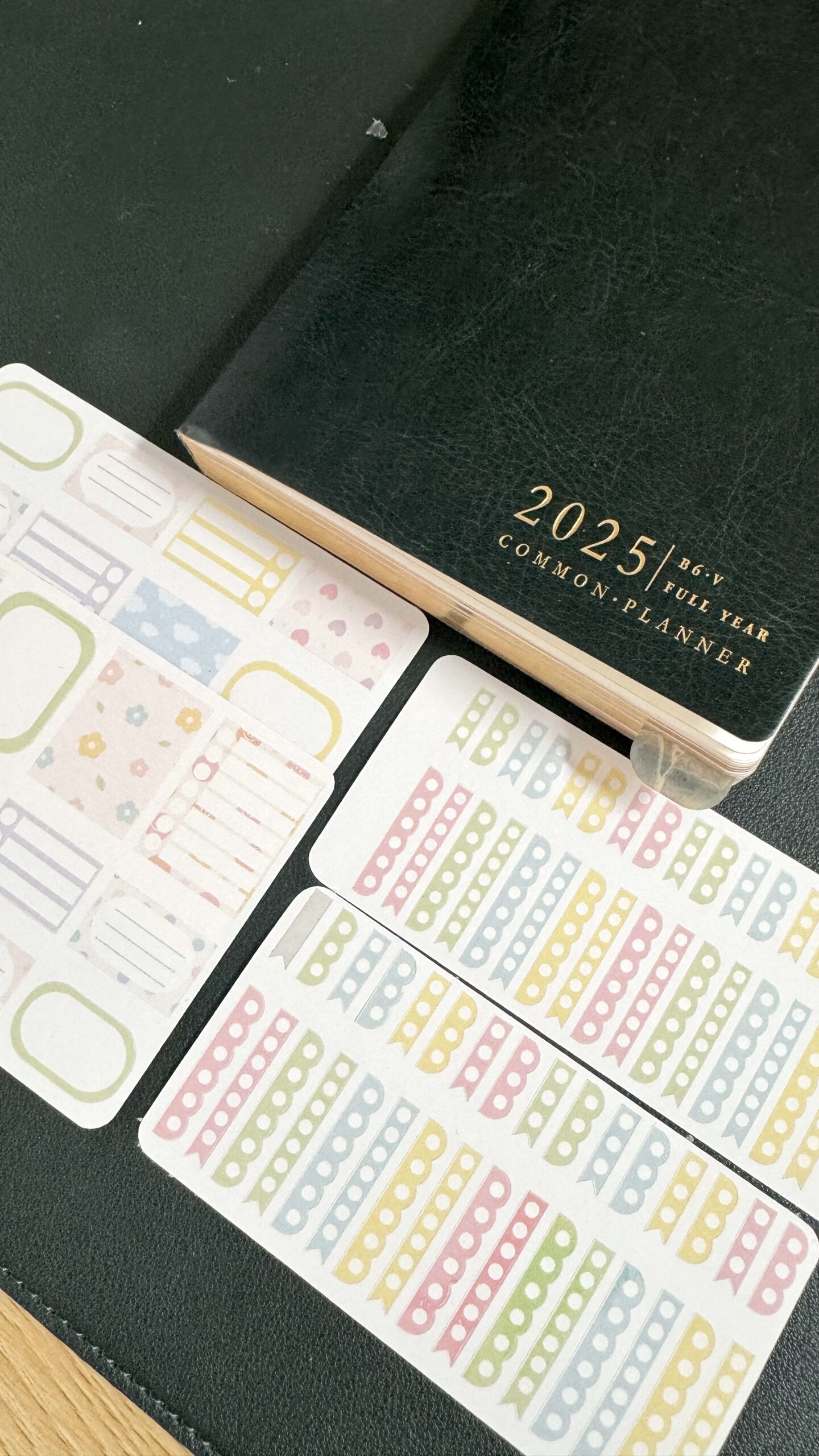
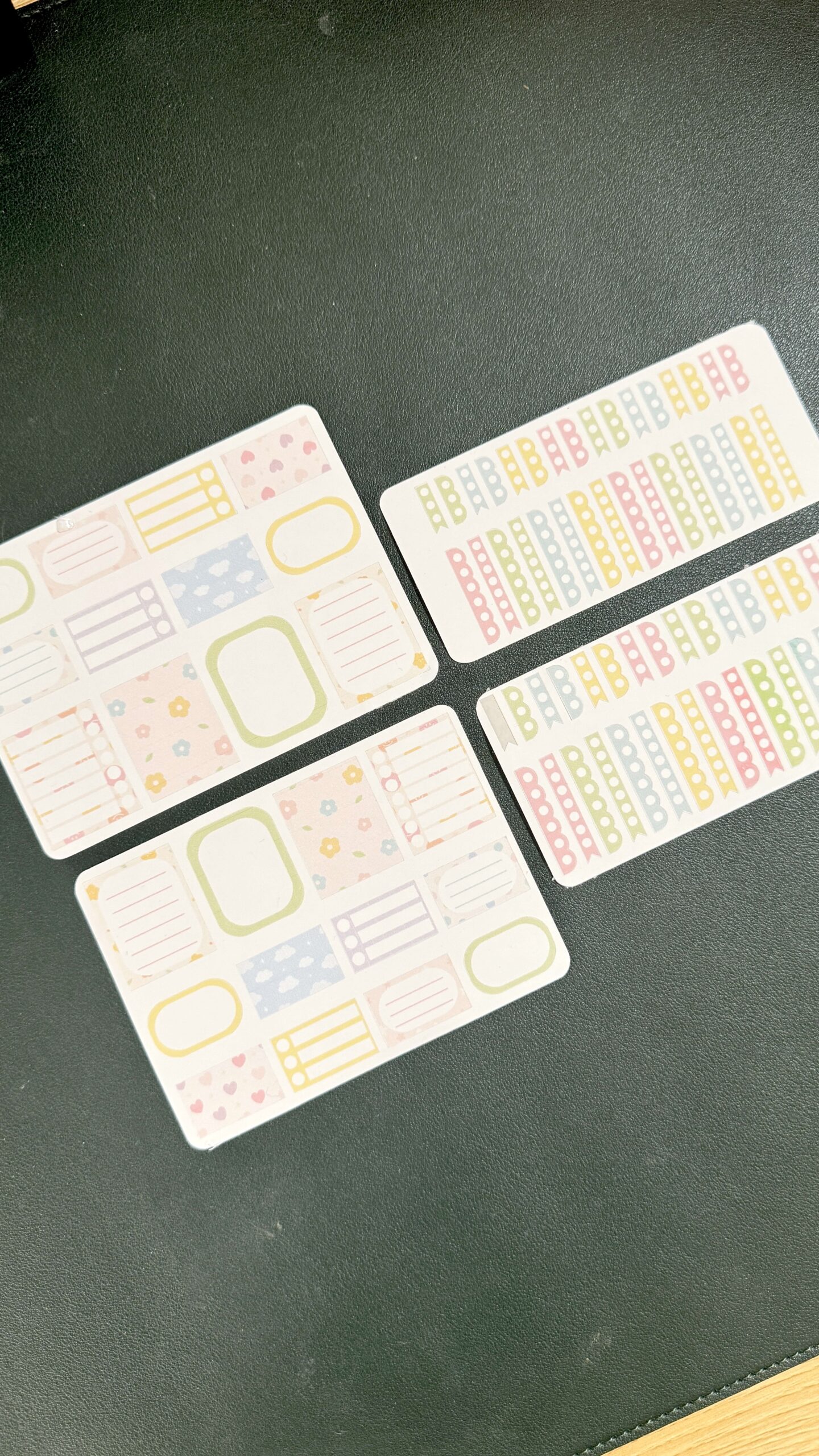
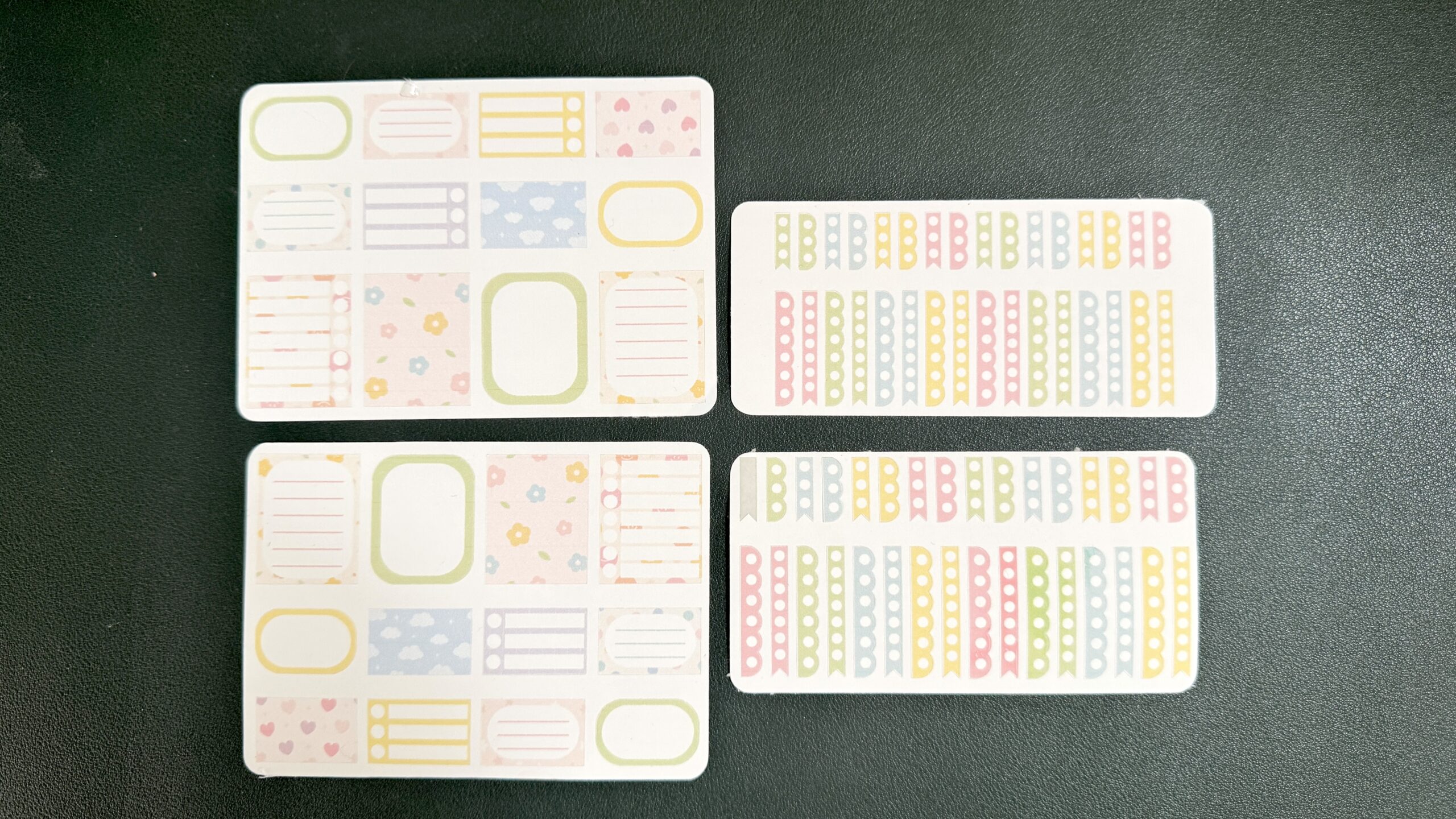
Preview of the Free Stickers
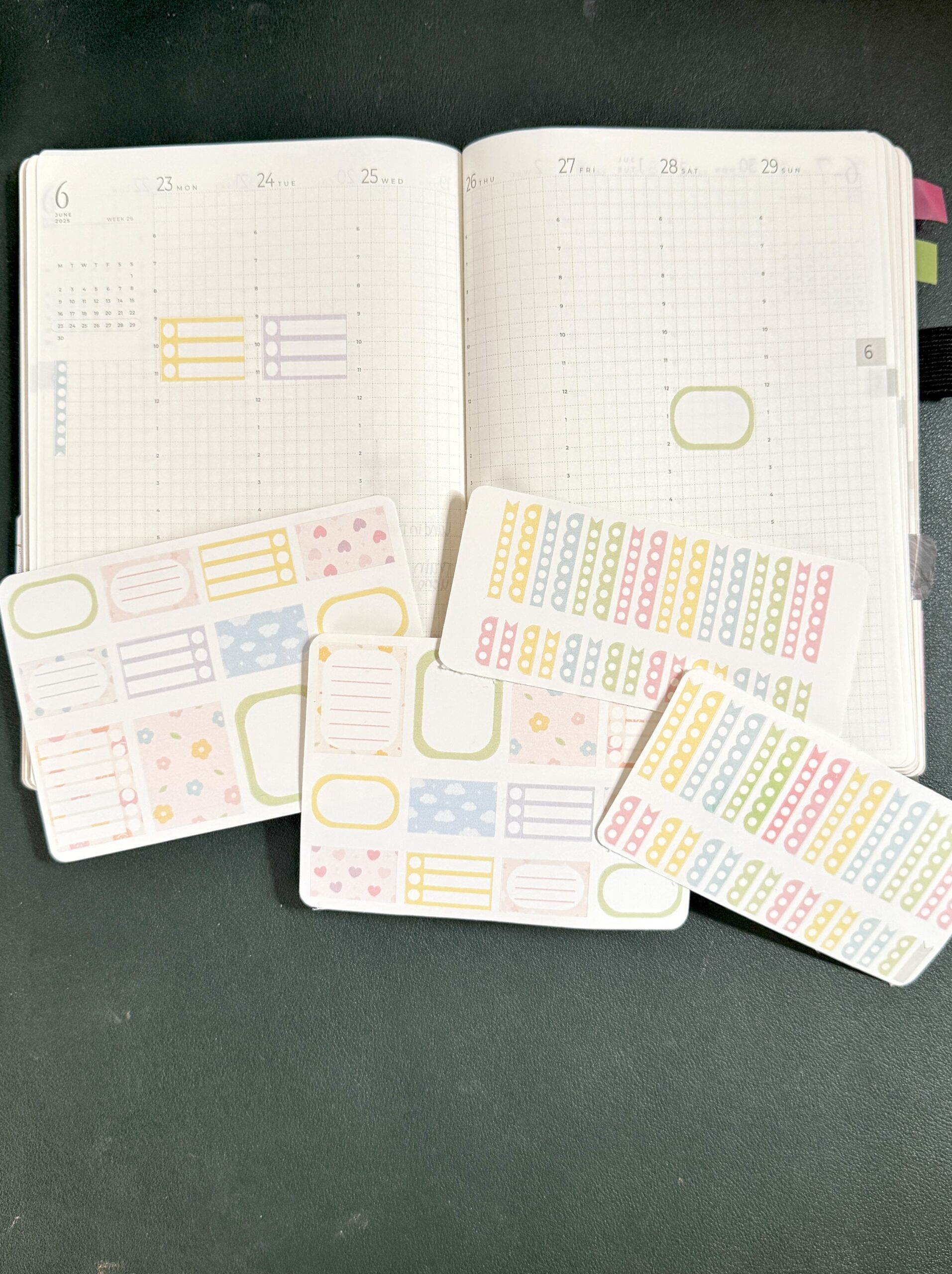
Download Your Free Pastel Sterling Ink Stickers
Click below to grab your free set:
👉 Download the Pastel Sterling Ink B6 Planner Stickers (PNG + SVG + Studio3)
The zipped folder includes:
- 1 PNG file
- 1 SVG file
- 1 Silhouette Studio file (.studio3)
Share Your Spread
If you use these stickers, tag me @WENDAFULPLANNING on Instagram so I can see how you styled them. I love sharing community spreads.
